Preparation Guide
Install the skill, then follow these steps to gather your information from the MyRichmond portal.
Install Skill
Open the Richmond Rec Portfolio skill repository and follow its installation instructions.
Open Skill RepositoryLogin to MyRichmond
Access the official City of Richmond portal to view your registered activities and progress.
Open MyRichmondCopy Activity Outcomes
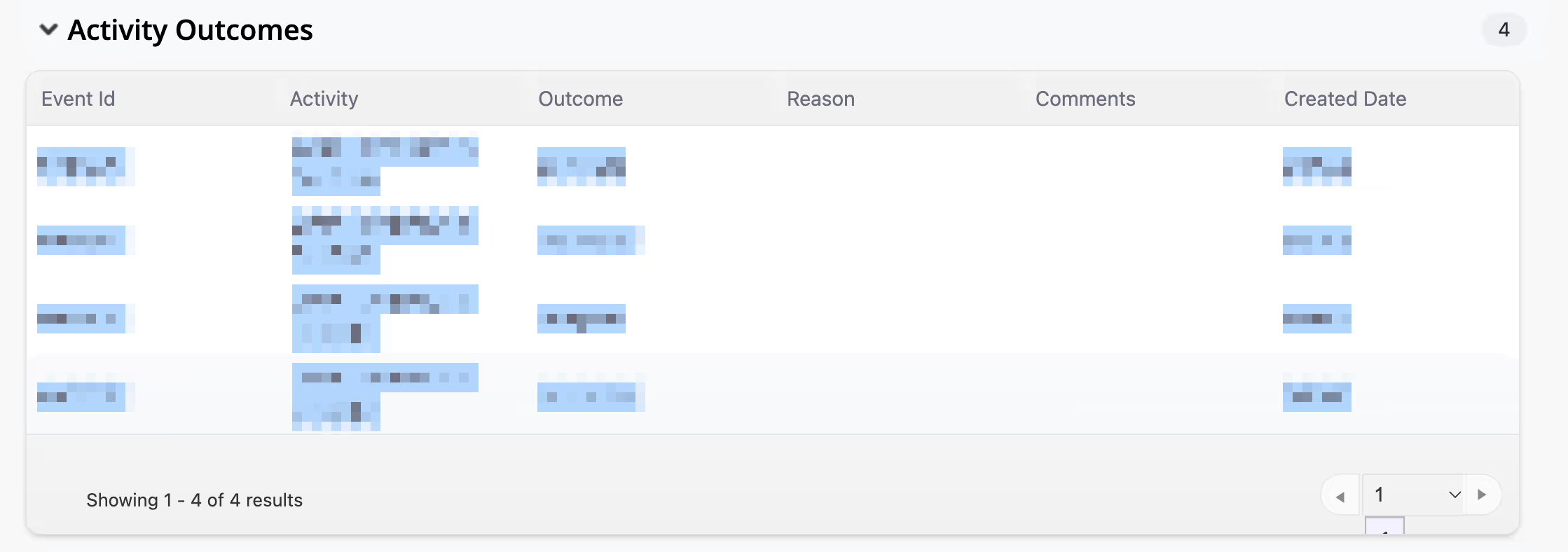
Navigate to My Info, find your family member in the Client List, and click their name to open their profile. Scroll down to Activity Outcomes, and copy all the content from the outcomes table.
Download Attendance History
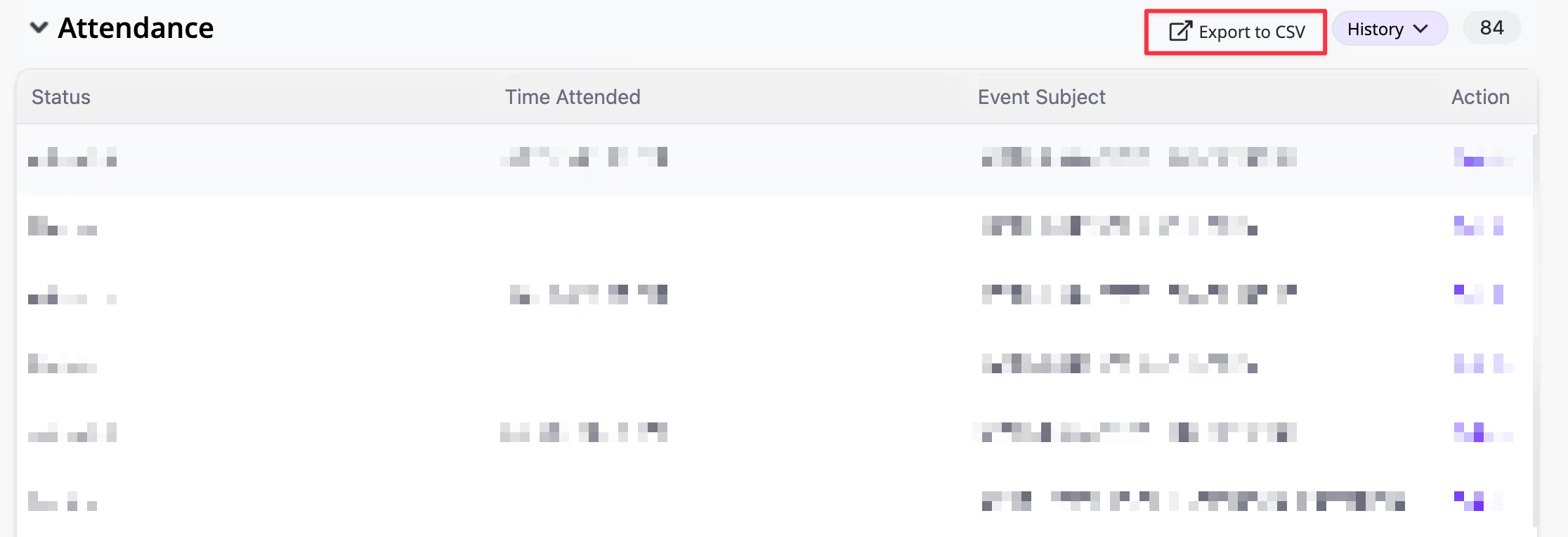
Scroll down to Attendance, select History from the dropdown, and click Export to CSV on the right. Look for a file named something like Attendance-History.csv.
Download Attendance Membership Scanning
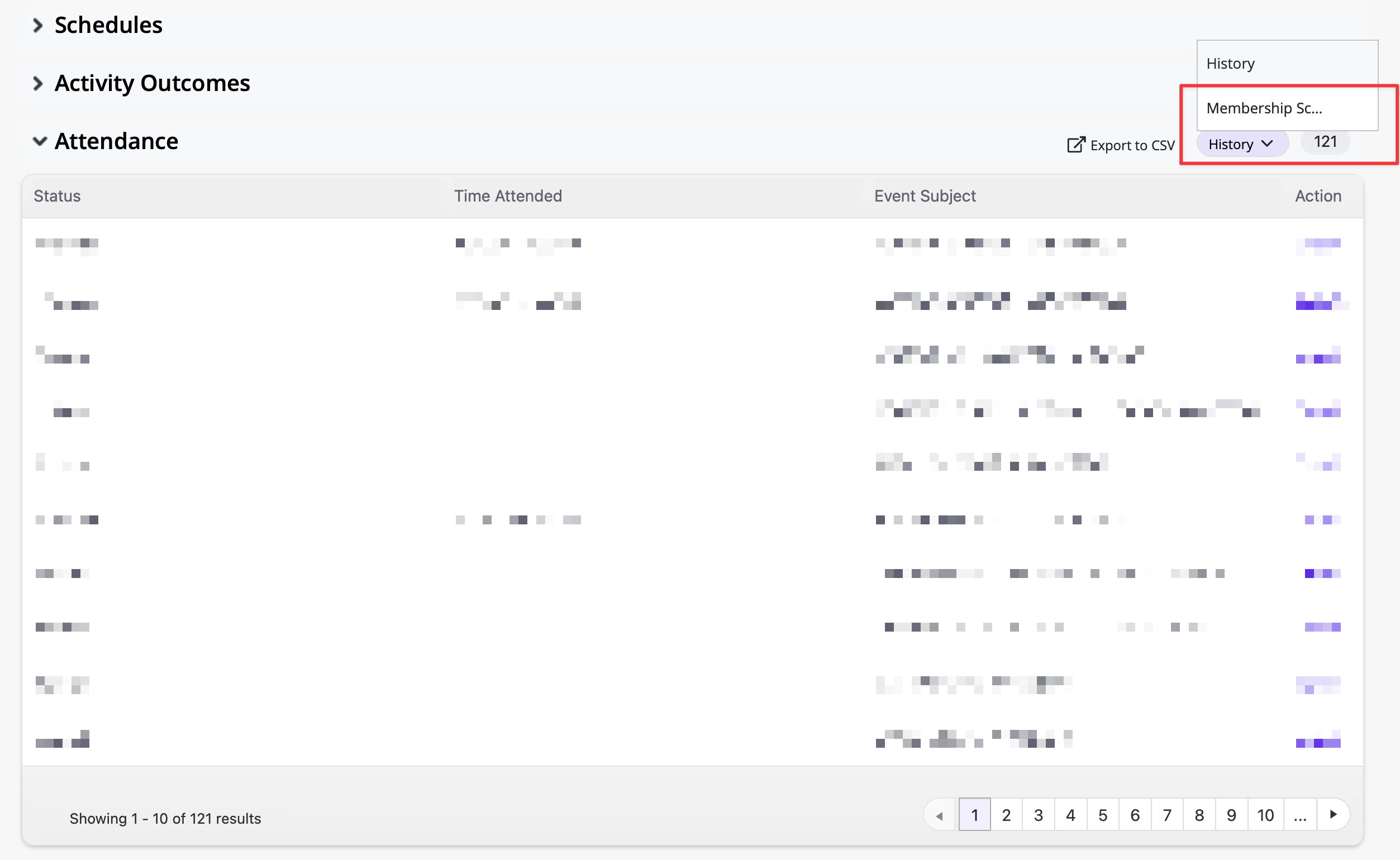
Scroll down to Attendance, select Membership Scanning from the dropdown, and click Export to CSV on the right. The downloaded file is named Attendance-Membership Scanning.csv.
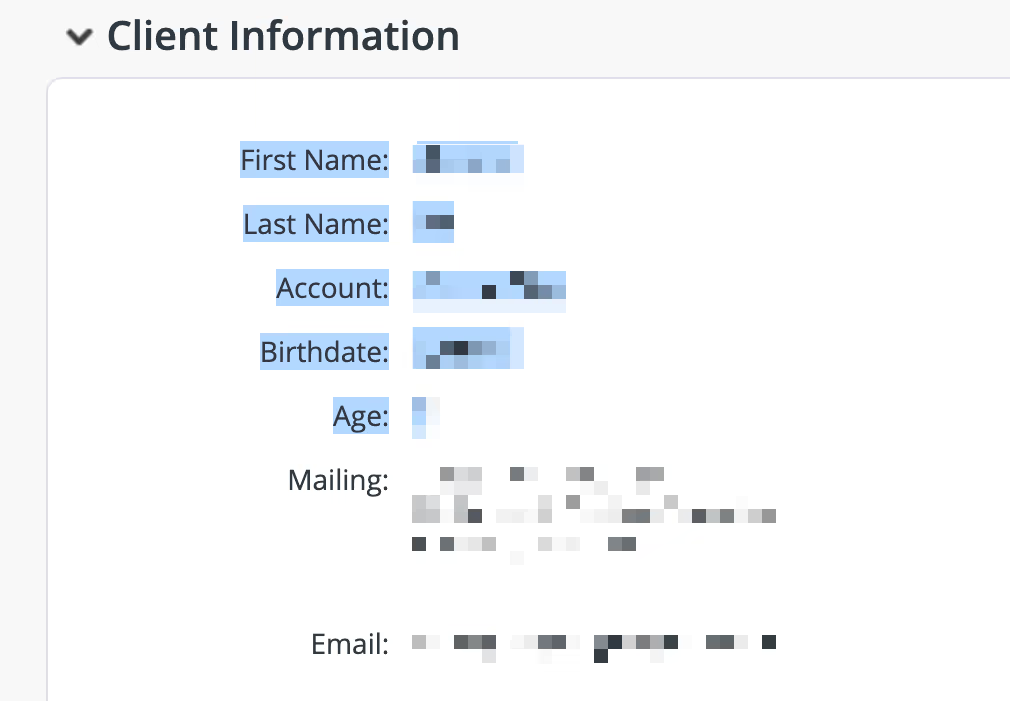
Optional: Copy Client Information
If you'd like to show your personal information in the portfolio you can copy your client information. In the Client Information section, copy everything from First Name down to Age.